Dashboard
The Roo Code Cloud dashboard provides a central location to manage your account, view task history, monitor usage analytics, and control remote workspaces.
Accessing the Dashboard
There are two ways to access your Roo Code Cloud dashboard:
Method 1: From the Roo Code Plugin
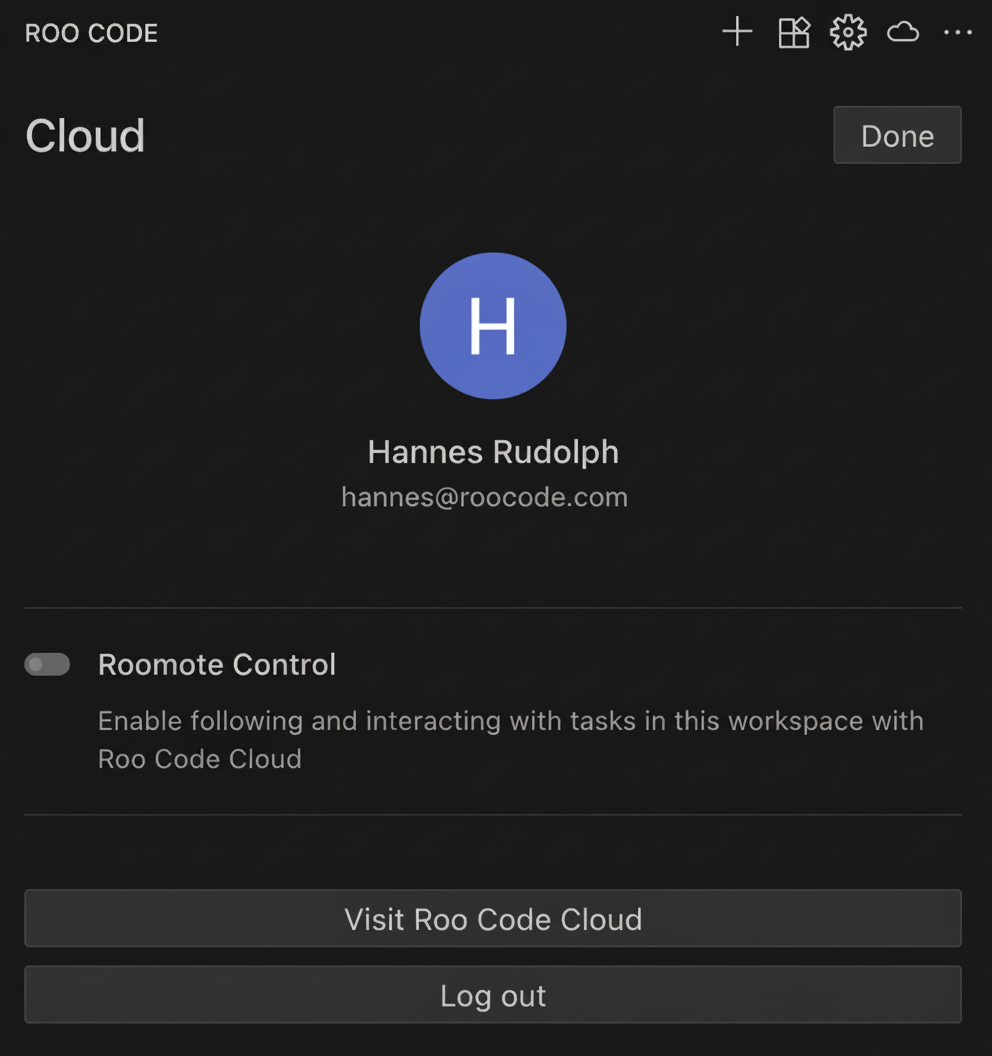
Once logged in, click the cloud icon in the top right corner of the Roo Code plugin, then click Visit Roo Code Cloud.
Method 2: Direct Web Access
Navigate directly to the Roo Code Cloud web application:
This allows you to access your dashboard from any web browser, even when not using the Roo Code extension.
Dashboard Pages
Home Page
The Home page combines Roomote Control and Tasks History in a single view.

Roomote Control Section
The Roomote Control section at the top allows you to:
- Toggle Roomote Control - Enable/disable remote control from the top right
- View Connected Workspaces - Shows your active VS Code workspace(s) with connection status
- Monitor Active Tasks - See currently running tasks with real-time updates
- Start New Tasks - Use the "New Task" button to launch tasks remotely (Pro feature)
Tasks Section
The Tasks section below displays your task history with:
- Task description - The prompt or request
- Timestamp - When the task was created
- User - Who created the task
- Mode - Which AI mode was used (ask, code, architect, etc.)
- Status - Complete, in progress, or failed
- Token count - Total tokens consumed
- Cost - Estimated cost for the task
Usage Analytics Page
Access detailed usage metrics by clicking the Usage tab in the navigation bar or navigate directly to app.roocode.com/usage.
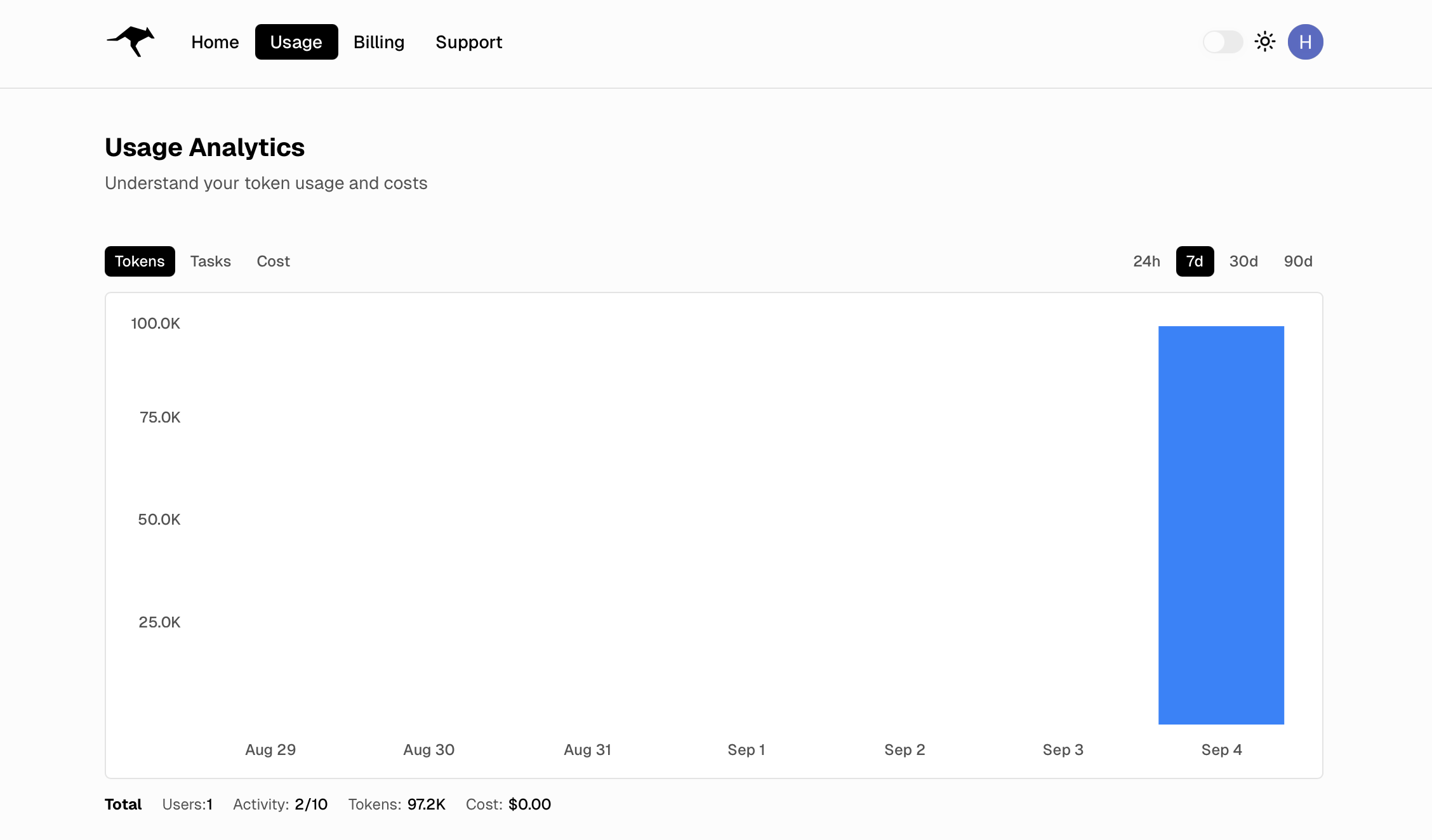
The Usage Analytics page provides:
- Interactive Graph - Visual representation of token usage over time
- Time Range Selection - View data for 24 hours, 7 days, 30 days, or 90 days
- Metrics Tabs - Switch between Tokens, Tasks, and Cost views
- Summary Statistics:
- Total users
- Activity count (e.g., "2/10" activities)
- Total tokens consumed
- Total estimated cost
Upgrade Page (before subscribing)
Start your subscription from the Upgrade tab or navigate to app.roocode.com/billing.
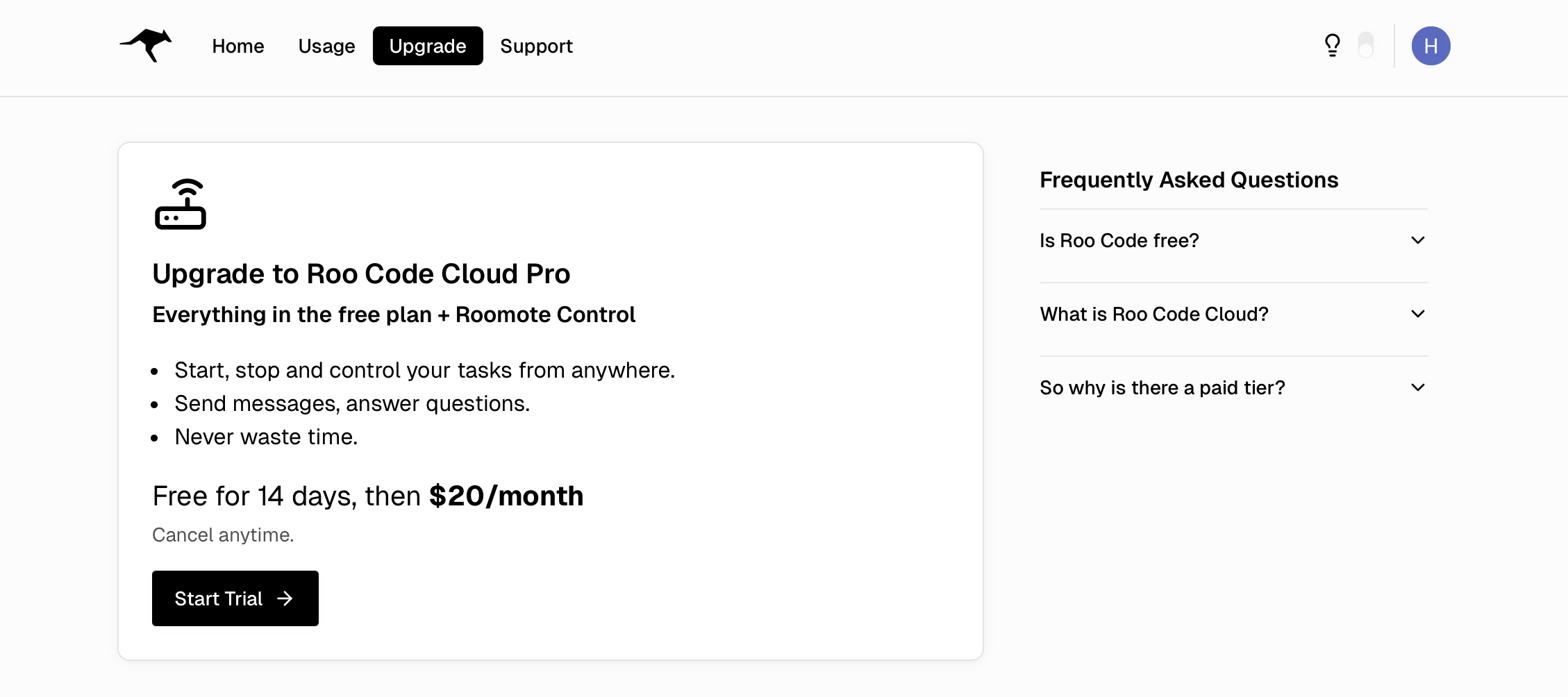
This page shows:
- Upgrade to Roo Code Cloud Pro card
- Free for 14 days, then $20/month
- Start Trial button
Billing Page (after subscribing)
After subscribing, the Upgrade tab is replaced by Billing. Manage your plan and access invoices at app.roocode.com/billing.
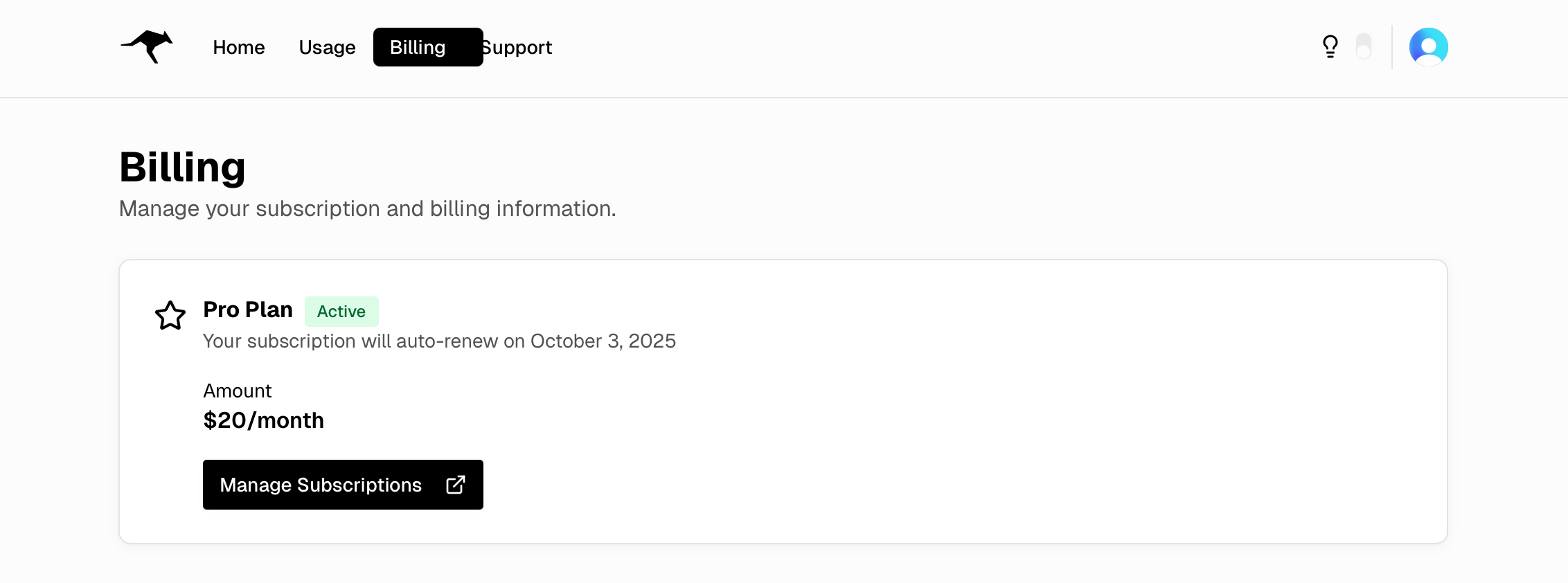
From this page you can:
- View Pro Plan status and renewal date
- Confirm $20/month amount
- Open the Stripe customer portal via Manage Subscriptions
See the Billing & Subscriptions documentation for complete details.